Writing and running a "Hello, World" program in Lua
This tutorial explains how to create and run a simple program in the Lua programming language on MontaukOS.
- Open the Text Editor by navigating to the 'Applications' section in the app menu.
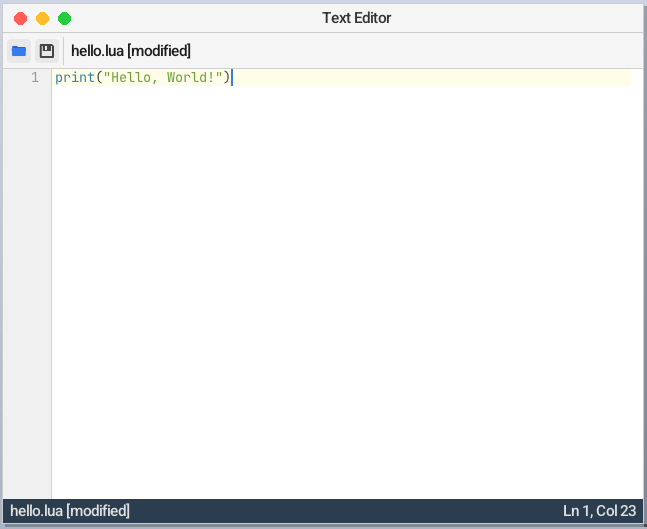
- Type:
into the Text Editor window. This code outputs the string "Hello, World!" to the Terminal.print("Hello, World!") - Click the Save (floppy disk) button on the top panel. Choose a directory to save your code in - for example, your Home folder - give the program a name ending in .lua, and click 'Save'.
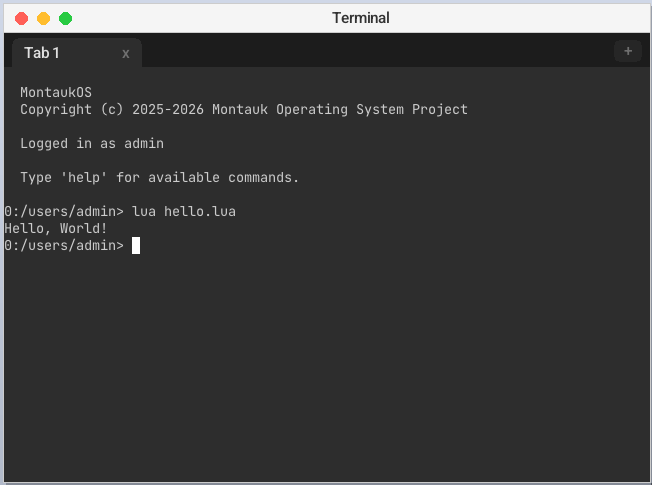
- Open the Terminal app by navigating to the 'Applications' section in the app menu. You should see something like this appear on your screen:
MontaukOS Copyright (c) 2025-2026 Montauk Operating System Project Logged in as admin Type 'help' for available commands. 0:/users/admin> - If you saved your program somewhere other than your Home directory, switch to the directory in which you saved your program using the cd command. For example,
cd Documents. - Type '
lua' followed by your program's name, and then press enter. For example, 'lua hello.lua'. - You should see "Hello, World!" displayed in the Terminal window. Congratulations!
Did you know? The MontaukOS Text Editor provides syntax highlighting for C and Lua files.
Beware!
The Lua implementation on MontaukOS currently has known issues. For example, floating point calculations do not work.